

Understanding data transmission between SAP and Microsoft Dynamics 365
Content
In our previous article, we explored a typical integration scenario between SAP and Dynamics 365, and shared our best practices for creating an individual scenario for your business. Now we’d like to take a closer look at how data moves between the two systems.
In this post, we’ll walk through the transmission process itself, explain data ownership and the different ways of transmitting data, and share expert-proven tips for preventing errors.
Let’s break down the process into four easy-to-understand steps first:
How does data transmission work?
1. First, check technical capabilities, data formats and restrictions. Each system has its own rules about what data it can accept (e. g. required fields) and how that data must be structured. Understanding these limits upfront prevents errors later.
2. Next, document the data tables and fields that will be exchanged. Knowing exactly which records and fields need to be synchronized ensures the right data goes to the right place.
3. Then, document the data flow and triggers that start the synchronization. Will updates happen in real time, on a schedule, or when specific events occur? Defining this avoids unnecessary data transfers and keeps both systems in sync.
4. Finally, create a technical design based on the documentation of the previous three steps. This design lays out how the integration will work.
💡 Important: Involve specialists who know both SAP and Dynamics 365. Their know-how can help you with mapping out a practical and reliable data transmission strategy, and with spotting potential issues early.
Managing master records between SAP and Dynamics 365: Who owns the data?
When integrating SAP and Dynamics 365, it’s important to know which system “owns” which data. This makes sure updates happen in the right place. Here’s how it works:
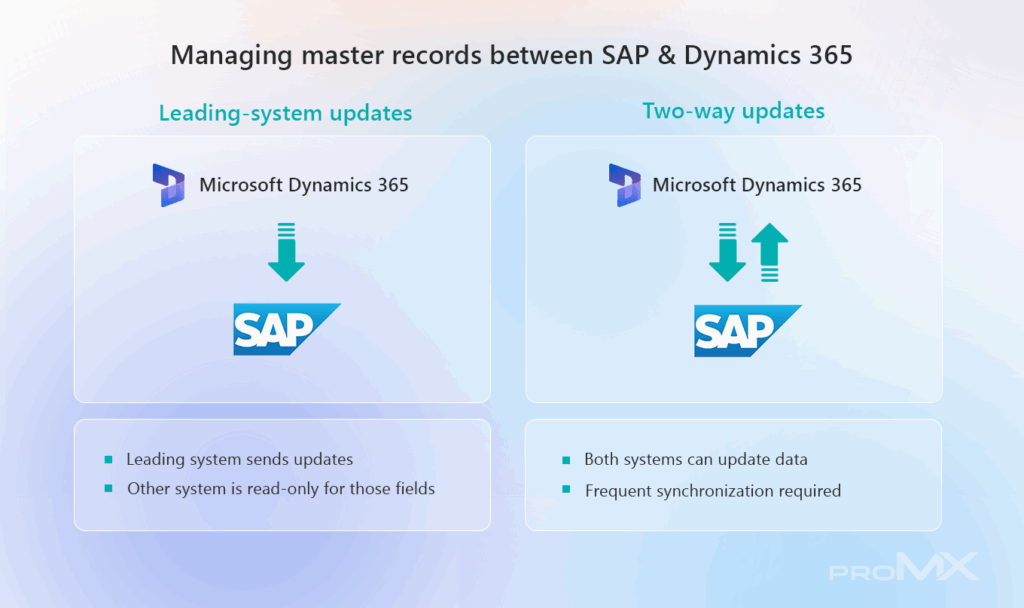
One-way updates (leading system)
Some systems are the primary source for certain data, which means: the leading system sends updates; the other system just receives them.
For example, Dynamics 365 “owns” the data of prospective customers during the early stages. Once the prospect becomes a customer and is created in SAP, it becomes the leading system for certain fields. These fields become read-only in Dynamics 365 and are updated only via one-way synchronization.
Two-way updates
In some cases, both systems can change the same data. For example, both SAP and Dynamics 365 update certain customer details. When this happens, you need to synchronize frequently to keep both systems consistent.
💡 Note: If synchronization isn’t quick or reliable, the two systems could temporarily show different information.
Sending data: bulk or single record?
Once you know which system owns which data, the next decision is how to move that data between Dynamics 365 and SAP. You generally have two options: bulk transmission or single-record transmission. Each has its pros and cons, and choosing the right approach depends on your business needs.
Bulk transmission
Bulk transmission means sending a large amount of data at once, for example updating dozens of company records in one go instead of one at a time.
SAP (the receiving system) needs a way to track which records have changed since the last update, which adds technical complexity. It must also be able to receive and process large data packages. These packages (called messages) contain all the updated information and are larger and more complex than single-record updates.
After sending the data, Dynamics 365 (the sending system) receives a response from SAP that confirms whether each record was successfully processed.
Single-record transmission
Single-record transmission means sending one data record at a time, for example updating a single customer or company entry as soon as a change is made.
This approach is simpler. When a change occurs in Dynamics 365 (the sending system), a plug-in can immediately trigger the update and send it to SAP (the receiving system). This ensures that data stays synchronized without delay.
💡 In short: Use bulk transmission when you need to update large volumes at once, and single-record transmission when you want real-time updates and a simpler, faster way of handling data (especially time-sensitive data).
Three tips for preventing errors in data transmission
Before you send data from SAP to Microsoft Dynamics 365 (or vice versa), it’s important to make sure you’re sending accurate, relevant and non-duplicate information between systems. Ask yourself these three questions as you prepare your data for transmission:
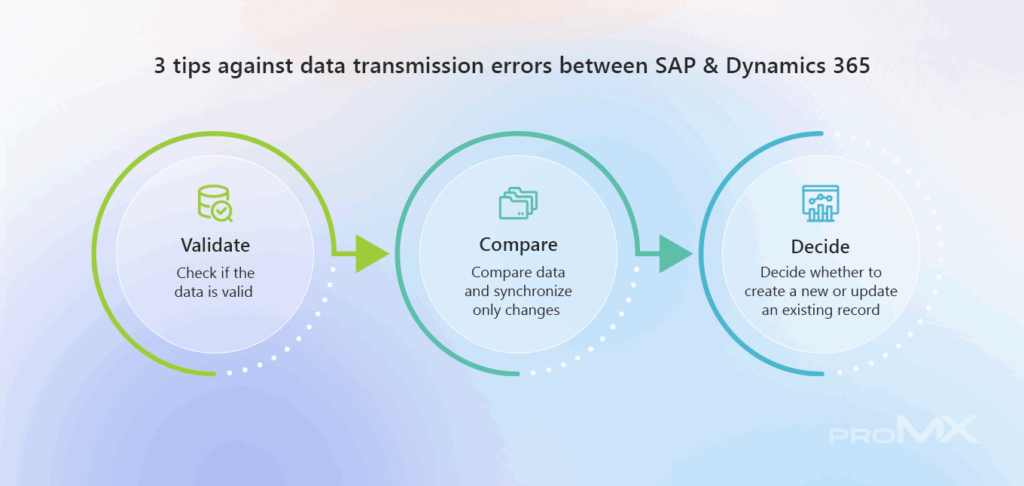
Is the data valid?
If the record doesn’t meet certain rules (for example: if a field is empty, but mandatory in the target system, or a field has an invalid value), it shouldn’t be sent.
Has anything changed?
If the target system supports partial updates, you don’t need to send everything every time (for example: an updated field in a customer record vs. the whole customer record). Instead, check what’s already there and only send what’s different. This saves time and system load.
Does the record already exist?
If both systems know each other’s unique IDs, it’s easy to tell if you need to create a brand-new record or just update an existing one. You can also track this with special “status” or “flag” fields. These flags can trigger a synchronization if the record hasn’t been sent yet or if it’s changed since the last synchronization.
Conclusion
By understanding how data flows between SAP and Dynamics 365, defining ownership of master records, choosing the transmission method that meets your requirements, and validating your data before sending, you can keep your systems synchronized and your data accurate.
Successful integration, however, requires experts on both sides. To ensure your project runs smoothly and meets your business needs, get in touch with the integration specialists at proMX. Let’s explore how we can support you!